Saturday, August 24, 2013

No colors when comparing code in AX

This is just a quick post on one of the annoyances when comparing elements in AX after the installing the latest version of Internet Explorer 10. Our beloved compare form suddenly doesn't show the red and blue color any more.


Apparently the latest version of the browser, IE10, doesn't support the gradient filter (CSS in HTML) once used for displaying the left hand side color boxes.

While it's not that big of an issue, I still felt compelled to sort it out. First I tried using some standard gradient CSS picked up from ColorZilla, but ended up using just static colors. I got the gradient to show OK in the browser, but not in the Ax form. Anyway, I just wanted the colors and not the fancy effects.


The solution is easy. Just change the HTML code put in the ActiveX components. Comment out the fancy gradient stuff and put on your own red and blue. Here is how I did it:


If anyone feels like sharing a different solution, please comment. For all I know, this will be sorted when Internet Explorer 11 is released. :-)

Update 9th of September

This problem is now solved in CU6 (6.2.1000.1437). They made the HTML complete with a CSS style section. I guess someone didn't want to throw out the gradient effect. ;-)


Monday, August 19, 2013

Compare models using PowerShell

I wrote this post about how to use PowerShell to compare two modelstores based on installed models. It is a simple comparison and only checks if the two have the same list of models.

In this post I will show how you can compare the list of elements in two models. This will only compare the actual list of elements, and not their metadata or code.

The Get-AxModel PowerShell command allows us to load both the Summary and Details of a certain model. It will list out information like the Name, Path, ElementHandle and ParentHandle, just to name a few.
First let us have a look at the Summary and Elements property, then later I will show how we can use the Compare command to easily compare two lists and pull out any differences.

For this example, I have created a small model named "MyModel" and added an EDT, a table field and dropped that field into a Grid in a form. I also made a private project for this model.
If I list out the Summary of this small model it would display this:

(Get-AXModel -Model "MyModel" -Details).Summary

Output


If I want to see a list of all the elements, I can run the same command but instead of the Summary I load the list of Elements:

(Get-AXModel -Model "MyModel" -Details).Elements | select path, elementtype | Format-Table -AutoSize

Output


Notice I explicitly select the path and elementtype, and just to make the output a bit prettier, I throw in a formatting statement in the end, Format-Table -AutoSize.

Now, I exported my model to a file (C:\mymodel.axmodel) and then added some additional elements to the model inside of AX.

I then compared the elements from the file with the model elements in the actual modelstore:

compare `
 -ReferenceObject ((Get-AXModel -Model "MyModel" -Details).Elements | select path, elementtype) `
 -DifferenceObject ((Get-AXModel -File c:\mymodel.axmodel -Details).Elements | select path, elementtype) `
 -PassThru -Property path, elementtype | sort path | Format-Table -AutoSize

Output


Notice how it list the SideIndicator to the left hand side, or the ReferenceObject list. Apparantly the model has a couple of elements more compared to the file. Yes, you can list out the elements from a file as well, as mentioned in this blog post. Again, it will not compare X++ code or metadata. Maybe in future versions, Microsoft will add a checksum or something we can compare for possible differences between two elements.

Finally a quick tip for loading long list of elements. If the list of elements grows beyond the height of the buffer, you will only see the last part of the list. You can "fix" this by increasing the Screen Buffer Size under Properties.


Enjoy!

Saturday, August 17, 2013

Logging Infolog to Event Viewer

This is probably a bit far fetched in real life, but still a cool feature built in AX 2012, and I really wanted to make a new blog post after a long summer vacation. Maybe someone will enjoy it still. :-)

This is already explained on the MSDN article "Propagate Infolog Messages to the Windows Event Log [AX 2012]", but I thought I'd throw in some screenshots just to make it even more appealing.

Obviously, this will only log client side as the Infolog push its messages to the client, and this tracing feature runs in the client scope.
There are some options to introduce server side logging using for example log4net. It is pretty good covered in this blog post, but it would require rewriting X++ code in order to trigger logging.

Developers will have the ability to use the static Debug::printDebug()-method to push any string to the debugger output window. These messages will open up the debugger, unless it isn't already running, and unless the output window is hidden, it should reveal the strings on the Debug-tab. Remember, in AX2012 only the users who are in the local (machine) usergroup named "Microsoft Dynamics AX Debugging Users" will see the debugger, as explained here.

Anyway, let us have a look at the easy and quick logging of Infolog messages.

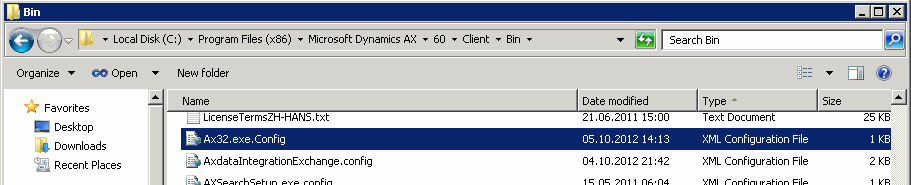
1) Start by locating the ax32.exe.config file, normally located under "C:\Program Files (x86)\Microsoft Dynamics AX\\Client\Bin\"


2) Open the file in notepad and add some additional XML sections in order to trigger the functionality. You can copy from the MSDN article or just type in what I have used.

3) In order to test this, let us create a simple job that triggers a Info, Warning and Error message.


4) Then let us open the Event Viewer and filter the log, just to focus on the events we just created.


4) Notice the Info-message was not included in my example, due to how I defined the switchValue only to include warnings and errors.


Now imagine having this set on a busy terminal server where everyone would be using the same logging setting. Depending on your requirements you could use this to preserve the most recent warnings and errors thrown to the client and browse through them when end users complain about all sorts of "mysterious" errors. Who haven't experienced end users complain about an error they can't remember the content of? Now you can go back and look in the Event Viewer and find it - hopefully.

Friday, July 5, 2013

Keep your AX2012 Modelstore performing

I had an interesting conversation with a very skilled and helpful Microsoft employee regarding maintenance of the Modelstore database. He sent me a SQL script prepared by the Microsoft Support Team.
First let's have a look at the proposed script, then let's look at why we would want to run it.

ALTER INDEX ALL ON [dbo].ModelElement REBUILD
ALTER INDEX ALL ON [dbo].ModelElementData REBUILD
ALTER INDEX ALL ON [dbo].Sources REBUILD
ALTER INDEX ALL ON [dbo].ModelElementLabel REBUILD
ALTER INDEX ALL ON [dbo].MODELSECPOLRUNTIMEEX REBUILD
ALTER INDEX ALL ON [dbo].ModelSecurityCommon REBUILD
ALTER INDEX ALL ON [dbo].ModelSecurityPermission REBUILD
ALTER INDEX ALL ON [dbo].ModelSecurityPolicy REBUILD
ALTER INDEX ALL ON [dbo].ModelSecurityPolicyConstraint REBUILD
ALTER INDEX ALL ON [dbo].ModelSecurityPolicyTable REBUILD
ALTER INDEX ALL ON [dbo].ModelSecurityRole REBUILD
ALTER INDEX ALL ON [dbo].ModelSecurityHierarchyCache REBUILD
ALTER INDEX ALL ON [dbo].ModelSecuritySubRole REBUILD
 
UPDATE STATISTICS [dbo].ModelElement WITH FULLSCAN, COLUMNS
UPDATE STATISTICS [dbo].ModelElementData WITH FULLSCAN, COLUMNS
UPDATE STATISTICS [dbo].Sources WITH FULLSCAN, COLUMNS
UPDATE STATISTICS [dbo].ModelElementLabel WITH FULLSCAN, COLUMNS
UPDATE STATISTICS [dbo].MODELSECPOLRUNTIMEEX WITH FULLSCAN, COLUMNS
UPDATE STATISTICS [dbo].ModelSecurityCommon WITH FULLSCAN, COLUMNS
UPDATE STATISTICS [dbo].ModelSecurityPermission WITH FULLSCAN, COLUMNS
UPDATE STATISTICS [dbo].ModelSecurityPolicy WITH FULLSCAN, COLUMNS
UPDATE STATISTICS [dbo].ModelSecurityPolicyConstraint WITH FULLSCAN, COLUMNS
UPDATE STATISTICS [dbo].ModelSecurityPolicyTable WITH FULLSCAN, COLUMNS
UPDATE STATISTICS [dbo].ModelSecurityRole WITH FULLSCAN, COLUMNS
UPDATE STATISTICS [dbo].ModelSecurityHierarchyCache WITH FULLSCAN, COLUMNS
UPDATE STATISTICS [dbo].ModelSecuritySubRole WITH FULLSCAN, COLUMNS

Before I created this post I did a quick test on one of my Modelstores and I gained a little bit on the compilation time, from 1h 53m to 1h 47m. That is just an improvement of 5 minute. This particular Modelstore only contained a vanilla R2 with DIEF, so it's not exactly a grand example.


We know the Modelstore of R2 is between 3,5 and 4 GB. The Modelstore database will easily be double the size. It will contain large indexes to support the tables. The image above shows some of the biggest tables with their indexes. We also know there is a hotfix released that makes a small adjustment to the schema reducing the compilation time by 20-40%.

Why bother to rebuild the indexes of the Modelstore and update the statistics? Well, obviously every time you fill it with a new awesome model, it creates new records in the Model-tables for each single element in that model. You probably uninstall less awesome models once in a while, leaving gaps in your indexes. Perfectly normal in a development environment. So running the script above once a week wouldn't hurt anyone - most likely just be an advantage.

The rebuild of the indexes will completely rebuild the index instead of just reorganizing the leafs. Since we want column statistics to be fully updated, we then run a new set of statements to make full scans and update any column statistics. Running this will make sure the model database is fit 4 fight. :-)

Monday, April 29, 2013

Setting up RapidStart for AX2012

I have just recently starting to work with Microsofts Dynamics RapidStart Services, and I would like to share my hints and tips for getting it up and running successfully - from a technical point of view. I have still some ground to cover, so I'll blog some more when I get there.

If you don't know what RapidStart Services is, then you're missing out. To put it short, the idea is to have a web site holding the parameters and data. These data can be maintained by the customer and the partner. This is a great tool for doing implementation projects, but it can also be used for quickly creating a demo or development environment. While the current version doesn't cover ALL possible parameters and data entities, the framework covers a whole lot.

So let's get started!

These are the major components in this installation:

  • A fully working AOS with Microsoft Dynamics AX 2012. All code compiled without error and CIL compiled successfully. 
  • The latest version of Data Import Export Framework. Installed and configured. Download from InformationSource. 
  • Latest version of the ERP RapidStart Connector. Download from CustomerSource or PartnerSource.(direct link)
  • A browser with Silverlight addon. Yea, Internet Explorer does work. 
  • A dedicated user in your Active Directory.

Service Account

Start by making a dedicated account. Don't use your own, or you will break the connector when you change your password. When installing the connector you will be asked to provide the username and password for this account, and the service installed will run under this account. You also need to add this account as a user in AX. Give it full access rights, unless you want to spend time figuring out which roles to chose. There are no built-in "Rapid Start" role.

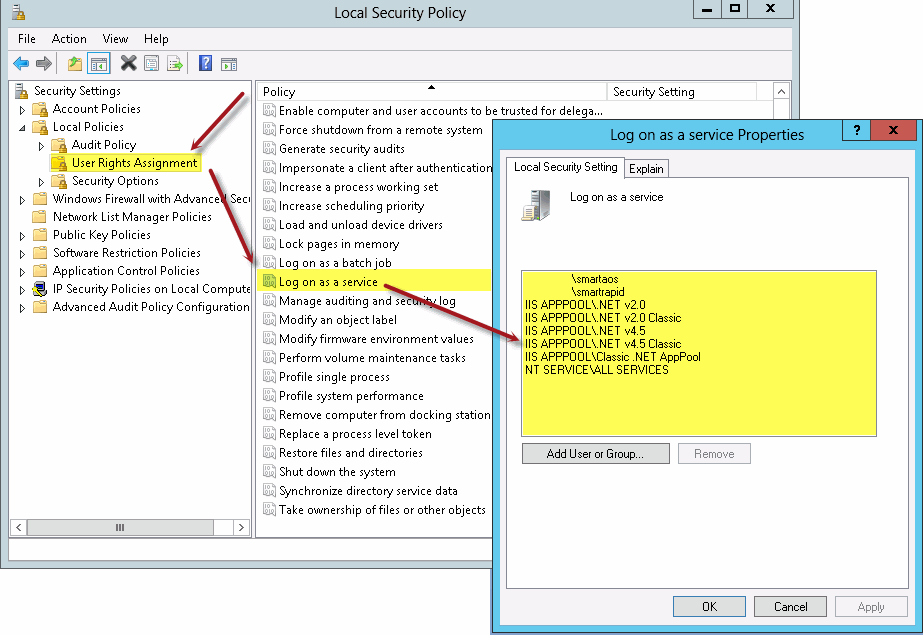
Since this will be a service account user, you will also have to add this user to the Local Policy rules with "Log in as a service".


You will also find the log file in this users application data folder (example C:\Users\daxrapid\AppData\Local\Temp\Microsoft.Dynamics.Framework.RapidStart.Connector\8.2.327.0\RapidStartConnector.log).
This log will be extra helpful for debugging why the Connector fails, if that happens.


ERP RapidStart Services Connector

Install the ERP RapidStart Services Connector. At the time of writing, I am running version 8.2.327.0. Head over to "Programs and Features" and make sure you don't have any older versions installed. There should only be one, and make sure you have the most recent one. You can uninstall and install this component as many times you need. This components must be installed on the same machine as the AOS. Maybe they will change this later on, but right now it only works if it sits on the server running the AOS. I've read that it will require one Connector for each AOS you want to connect to, but I will test that further.

Data Import Export Framework

You need this installed and prepared for the connector to be able to push and pull data. Installing this component is a topic on its own. Right now, this model gets installed in the FPK-layer, so it should be relatively easy to get it in. Again, make sure your AOT compiles without errors.

You need to manually enable one of the Service Groups after installing the model. This Service Group has its "AutoDeploy" set to "No", so you will have to manually deploy and verify it is active. The services needed for the connector to work are:
  • AifGDS
  • AppConfigServices
  • MetadataService
  • QueryService
  • DMFService

Except for the Metadata- and QueryService, you will need to check these and make sure they are running.


You also need to create a special Source Data Format and choose it as your format when using the ERP Connector. The format should be delimited file, first row active, row by CR+LF and column by comma. Head over to Parameters and clear out "Ignore Errors" as well.

Ready to Connect

When you start the ERP RapidStart Services Connector the first time, it will be without any Activation ID (GUID). Fill in the servername and the WSDL port. Head over to "Data Import Export Framework"-tab and select the Source Data Format you created earlier. Save the changes. Back to the "General"-tab and hit the Active-button. A link to the RapidStart page is enabled.Now you can start the Service. 


It will launch the RapidStart website where you can login using your Live-ID. After choosing a customer and a Service, you will be asked to choose which endpoint you will use. Select endpoint and hit Submit.
Next you can click "Manage Endpoint" and start creating projects or importing metadata through the ERP Connector.

Troubles in paradise?

If the service doesn't start, check the Evenlog or the RapidStart log file. Did you remember to add the RapidStart service account as user in AX? Did you give it admin access? Forgot to add the user with "Log on as Service" in Local Policy?

Is the connector being blocked by a firewall? Expect http (TCP 80) and https (TCP 443) in addition to TCP 9350-9354. Simply check by disabling the firewall. If it works, turn it back on and enable the traffic.
Did you make sure the Service Endpoints inside AX are Active?

Still having issues? Comment below, or head over to the Community Forum and get help.

Some other good sources:


Monday, April 22, 2013

Setting up scheduled processing of cubes in AX2012

Here is a quick guide on how you can easily and quickly setup scheduled processing of the cubes for Microsoft Dynamics AX 2012. The same approach works for other Analysis Databases, but sometimes it helps to put things in context in order to make it easier for you AX geeks out there.

I'm assuming you have setup and configured the standard Dynamics AX Analysis Database. Preferably also run a manual processing and analysed any errors or warnings. My example is from AX 2012 R2 on SQL Server 2012, and I just want to have it process without any error logging.

Start off with logging on to the Analysis Instance using SQL Server Management Studio. Find the "Dynamics AX initial" OLAP Database. If you have created multiple partitions, they will have their separate OLAP Database.

Right click and choose Process to open the processing dialog:


In the process dialog click the "Change Settings..." button:


A new windows will pop up. Head over to the tab "Dimension key errors" and click "Use custom error configuration". Choose to "Ignore error count" and define error conditions to "Ignore error". Here you can opt in for "Report and continue" and also have any issues be reported to a Log file, but do a test and pay attention to the Log filesize. It may grow rapidly, and even become several GB. 

Press OK, but don't start the processing. Now with the current setup, choose to Script the Action to a New Query Window:

The Action will be scripted as a XML structure. We will now use this command in a SQL Server Agent Job.

Head over to SQL Server Agent and create a new Job:


On the section for Steps, add a new Step:


The new Step needs to be of type SQL Server Analysis Service Command. It will be run under the SQL Server Agent Service Account, so make sure this service account has Read access to the Dynamics AX Transaction Database. Paste in the XML command from previous steps and save the step by pressing OK:


Now you can chose the Schedule section and create a new schedule for this job. You may chose to have it process on a daily basis, or multiple times per day. Choose whatever is suitable for your needs.

Finally, do a test of the Job and make sure it runs through. If it doesn't, use Job History to find the cause of any errors. Feel free to comment or ask, if you get stuck.


Thanks for reading!

Sunday, April 21, 2013

Review of Implementing Microsoft Dynamics AX 2012 with Sure Step 2012

First and foremost; this is a very good book! I had the pleasure of reading through Implementing Microsoft Dynamics AX 2012 with Sure Step this weekend, and while I initially planned to just read the chapters and topics related to my focus in Dynamics AX projects, it was quite interesting to read the other chapters as well. It is clear that the authors have a lot of experience with Dynamics AX as a product, in addition to delivering implementation of this huge enterprise solution.

The book covers a lot of ground, and contains a bunch of great tips for a successful project deliverance. Sure there are a lot of topics that you would think were common knowledge (or sense), but anyone who has participated in implementing AX 2012 knows there are a lot of pitfalls compared to previous versions of AX. The book covers them very well. The width of the content makes it an excellent book for all roles and participants in an implementation of AX 2012. It is not too technical, but still have a fair amount of valuable details.

I would highly recommend this book for all team members, not just the decision makers or project leaders. You could even argue the customer should have a copy. ;-)

My favorite chapters were Planning the Infrastructure (3), Installing the AX Environment (4), Integration (7), Designing and Developing the Solution and Reports (10). So that is almost half the book already. But again, chapters like AX Setup (6), Harnessing the Power of Standard AX Features (8) and Designing and Developing the Solution (9) couldn't be left unread.

The book does contains content on good project methodology, but I read it more like good advice and valuable experience for a successful implementation. Some sections could easily be found in books like Inside Microsoft Dynamics AX 2012, like explanations on application code layer and deployment on modelstores vs models. Actually, even if your company uses a different implementation methodology, this book is a great asset. That is also why I found it easy to read and very interesting.

So to wrap it up, if you are a part of a team implementing Dynamics AX 2012, have someone get a copy of this book. Read the chapters covering your part of the delivery, and before you know it, you have read the other chapters as well.

At the time of writing, the eBook is sold for just £15. Affordable, if you ask me.


Good job, Keith Dunkinson and Andrew Birch.