Showing posts with label AX2012R2. Show all posts

Monday, June 1, 2015

Fixing firstDayOfWeek and firstWeekOfYear in AX2012

I was asked to have a look at why the date picker in AX still chose Sunday while the user expected Monday. I remember fixing this back in AX2009, so I was curious to see how this was solved in AX2012. The Global class and the methods firstDayOfWeek and firstWeekOfYear caught my attention. One of them used the current users language as key to find the best possible calendar setting, while the other picked the default system setting. Well, let us rewrite this and make it work a bit better, and since sharing is caring - here is how I solved it.

Global::firstWeekOfYear served as an inspiration, but I want it to differentiate between whatever languages my environment is serving. I can live with one cached result for each language, and the performance penalty is low and acceptable.


static int firstWeekOfYear()
{
    #WinAPI
    SysGlobalCache  cache   = classfactory.globalCache();
    int             clientFirstWeekOfYear;
    anytype         calendarWeekRuleValue;
    // Axdata.Skaue ->
    /*
    str             language;
    */
    str             language = currentUserLanguage();
    // Axdata.Skaue <-
    System.Globalization.CultureInfo        userCulture;
    System.Globalization.CalendarWeekRule   calendarWeekRule;
    System.Globalization.DateTimeFormatInfo userDateTimeFormat;

    // Axdata.Skaue ->
    /*
    if (cache.isSet(classStr(Global), funcName()))
    */
    if (cache.isSet(classStr(Global), funcName() + language))
    // Axdata.Skaue <-
    {
        // Axdata.Skaue ->
        /*
        clientFirstWeekOfYear = cache.get(classStr(Global), funcName());
        */
        clientFirstWeekOfYear = cache.get(classStr(Global), funcName() + language);
        // Axdata.Skaue <-
    }
    else
    {
        // Axdata.Skaue ->
        /*
        language = currentUserLanguage();
        */
        // Axdata.Skaue <-
        userCulture = new System.Globalization.CultureInfo(language);
        userDateTimeFormat = userCulture.get_DateTimeFormat();
        calendarWeekRule    = userDateTimeFormat.get_CalendarWeekRule();
        calendarWeekRuleValue = CLRInterop::getAnyTypeForObject(calendarWeekRule);

        switch(calendarWeekRuleValue)
        {
            case CLRInterop::getAnyTypeForObject(System.Globalization.CalendarWeekRule::FirstDay) :
                clientFirstWeekOfYear = 0;
                break;
            case CLRInterop::getAnyTypeForObject(System.Globalization.CalendarWeekRule::FirstFullWeek) :
                clientFirstWeekOfYear = 1;
                break;
            case CLRInterop::getAnyTypeForObject(System.Globalization.CalendarWeekRule::FirstFourDayWeek) :
                clientFirstWeekOfYear = 2;
                break;
        }

        // Axdata.Skaue ->
        /*
        cache.set(classStr(Global), funcName(),clientFirstWeekOfYear);
        */
        cache.set(classStr(Global), funcName() + language,clientFirstWeekOfYear);
        // Axdata.Skaue <-        
    }

    return clientFirstWeekOfYear;
}


Using the same ideas, I changed Global::firstDayOfWeek. Again, I allowed for one cached result for each language.
static int firstDayOfWeek()
{
    // Axdata.Skaue ->
    /*
    System.Globalization.DateTimeFormatInfo fi;
    */
    int dow;
    str             language = currentUserLanguage();
    System.Globalization.CultureInfo        userCulture;
    System.Globalization.DateTimeFormatInfo userDateTimeFormat;
    // Axdata.Skaue <-

    SysGlobalCache  cache   = classfactory.globalCache();
    int             clientFirstDayOfWeek;

    // Axdata.Skaue ->
    /* 
    if (cache.isSet(classStr(Global), funcName()))
    */
    if (cache.isSet(classStr(Global), funcName() + language))
    // Axdata.Skaue <-
    {
        // Axdata.Skaue ->
        /* 
        clientFirstDayOfWeek = cache.get(classStr(Global), funcName());
        */
        clientFirstDayOfWeek = cache.get(classStr(Global), funcName() + language);
        
    }
    else
    {
        // Axdata.Skaue ->
        userCulture         = new System.Globalization.CultureInfo(language);
        userDateTimeFormat  = userCulture.get_DateTimeFormat();
        dow                 = userDateTimeFormat.get_FirstDayOfWeek();        
        /* Removed
        fi = new System.Globalization.DateTimeFormatInfo();
        dow = fi.get_FirstDayOfWeek();
        */
        // Axdata.Skaue <-
        
        // The .NET API returns 0 for sunday, but we expect sunday to
        // be represented as 6, (monday is 0).
        clientFirstDayOfWeek = (dow + 6) mod 7;

        // Axdata.Skaue ->
        /*
        cache.set(classStr(Global), funcName(),clientFirstDayOfWeek);
        */
        cache.set(classStr(Global), funcName() + language,clientFirstDayOfWeek);
        // Axdata.Skaue <-
    }

    return clientFirstDayOfWeek;
}

So, for those of you who have an environment supporting potential multiple calendar setups, I recommend applying the fix above, or write your own fix. If you know a more efficient and better way, please comment below.

Wednesday, April 23, 2014

Mark Compile application step complete in checklists

Since AX2012 R2 CU7, most of us have started to use axbuild for a complete application compilation. While this is fine and dandy, there are still checklists within AX that demands this step to be run in the client itself. Until we get an option to "Mark as complete", you can mark the step yourself using the following job:

static void CompleteCompile(Args _args)
{
    SysCheckList::finished(classnum(SysCheckListItem_Compile));
    SysCheckList::finished(classnum(SysCheckListItem_CompileUpgrade));
    SysCheckList::finished(className2Id(classStr(SysCheckListItem_CompileServ)));
    SysCheckList::finished(classnum(SysCheckListItem_SysUpdateCodeCompilInit));
}

Run the job and observe the step is marked as completed. No sweat!

Wednesday, April 16, 2014

Error when importing Model downloaded from Internet

If you were to download my compressed AX Model, YetAnotherDynamicsAXModel.zip, to your machine, Windows will most likely tag the downloaded file as unsafe and "blocked".

This is perfectly normal and expected behavior. However, this cause problems if you were to try install the model. After unzipping the content and attempting to install it you would get this error:

CategoryInfo : OperationStopped: (:) [Install-AXModel], PipelineStoppedException
FullyQualifiedErrorId : Exception has been thrown by the target of an invocation.,Microsoft.Dynamics.AX.Framework.Tools.ModelManagement.PowerShell.InstallAXModelCommand


If you were to attempt peek inside the model using Get-AxModel you would get this error:

CategoryInfo : OperationStopped: (:) [Get-AXModel], PipelineStoppedException
FullyQualifiedErrorId : An attempt was made to load an assembly from a network location which would have caused the assembly to be sandboxed in previous versions of the .NET Framework. This release of the .NET Framework does not enable CAS policy by default, so this load may be dangerous. If this load is not intended to sandbox the assembly, please enable the loadFromRemoteSources switch. See http://go.microsoft.com/fwlink/?LinkId=155569 for more information. ,Microsoft.Dynamics.AX.Framework.Tools.ModelManagement.PowerShell.GetAXModelCommand

While the first error isn't really intuitive, the next error gives us an additional clue; "assembly from a network location".

The solution is simple - unblock!

You have the choice to either unblock the downloaded zip.


Or you will have to unblock the AX Model file itself.


After the file is marked as safe and "unblocked", you are good to go!

Thursday, April 10, 2014

Warm up Reporting Services for quicker reporting

You might already know AX2012 R2 CU7 brought a new helper class for warming up Reporting Services so it doesn't "fall asleep" during long periods of inactivity. The new class has already been blogged about, but in this post I will show to set up the batch and also give you some hints on how to find potential reports you can target if you want to extend the class.

Setting up the batch

Now, I'm going to set this up for every 10 minutes, and not every minute as some might suggest.

The class is dependent on a SSRS report that needs to be deployed, so if you haven't done so already, find the report and deploy it.


After making sure the report is available, you need to locate the class in the AOT. Open the class to run it. Choose batch and define recurrence and alerts.


When the report runs, it will save the result as a PDF to the temporary folder on the AOS. You may open the report and view it, if you're really interested. The point is not the report as much as keeping the service "warm" and also provide a pattern for warming up other potentially slow running reports.


You may want to make sure you don't get a log entry for each successful batch run. I prefer to keep Errors Only for these types of frequent jobs.


Finding potential reports for extending the warmup

Reporting Services logs the execution of the reports and there are a lot of good statistics you can use to investigate potential performance issues. For this example I will run a SQL Query that gives me frequently run reports and load some metrics. I'm looking for reports run the last month with more than 25 runs and where there are more zero rows. These reports could be reports I would want to keep warm.

SELECT 
  COUNT(REPORTPATH) AS RUNS, 
  REPORTPATH, 
  MAX(TIMEDATARETRIEVAL) AS MAX_DATA ,
  MAX(TIMEPROCESSING) AS MAX_PROCESSING,
  MAX(TIMERENDERING) AS MAX_RENDER,
  MIN(TIMEDATARETRIEVAL) AS MIN_DATA ,
  MIN(TIMEPROCESSING) AS MIN_PROCESSING,
  MIN(TIMERENDERING) AS MIN_RENDER
FROM EXECUTIONLOG2 
  WHERE 
     STATUS IN ('RSSUCCESS') 
  AND REPORTPATH NOT IN ('UNKNOWN')
  AND TIMESTART > DATEADD(m,-1,GETDATE())
  AND BYTECOUNT > 0 AND [ROWCOUNT] > 0
GROUP BY REPORTPATH
HAVING COUNT(REPORTPATH) > 25
ORDER BY COUNT(REPORTPATH) DESC

Here are a snippet of the results. You can clearly tell even the warmup report has different metrics for MAX and MIN. These are milliseconds, but if you see reports spending several thousands of milliseconds processing or rendering just a few rows, you may want to investigate why.


Coming from pretty quick and performant MorphX reports to SSRS might be painful both for us AX consultants and AX end users, but then we also see some reports perform stunningly if they were run just minutes ago. You would think they should run just as slow each time. They don't, so maybe we should figure out why that is. Keeping Reporting Services warm is part of the solution.

Friday, March 14, 2014

Skip The Modelstore has been modified dialog

Let me first off just say, use this with care. So there, I've said it.

You know the dialog that shows up when the modelstore has changed and is considered "dirty". "Dirty" means that something has changed and it is unsafe to keep it like that without compiling, synchronizing and generating CIL. Depending on why it is dirty in the first place, you may want to opt for running one of the built-in checklists or opt for "Skip".


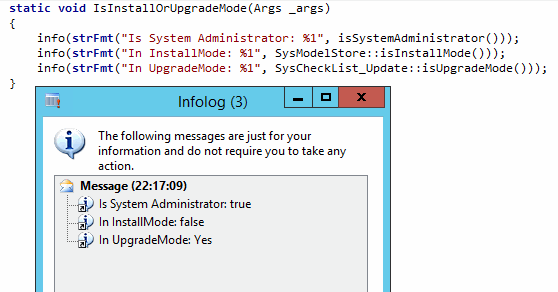
Now "Skip" is obviously not recommended, and that step doesn't do anything. In fact, if you choose "Skip" the same dialog will be loaded the next time you load the client. The dialog is loaded if your user is System Administrator and the modelstore is either in InstallMode or UpgradeMode. If you've installed or upgraded some models, you are per definition in one of those modes. You can test this by running this simple job:


So why would you want to really "Skip" this dialog? Let's say you've upgraded some models. You ran AxBuild and it went through. Now you fire up the AOS and start the Client. You "Skip" and continue with synchronize and generate CIL. You don't want to run the "Compile and Synchronize" because you've already compiled and you know it takes hours to compile using the client. Now, most importantly, you do all of this because you are confident the changes to the AOT are not necessary to analyze through the checklists. Still, this dialog us stuck there.


Easiest way to get rid of it now is to uncheck the MinorUpgrade checkbox on the ReleaseUpdateConfiguration table. Close the Client and start it again.

Dialog gone! ;-)

UPDATE:
You can also alternatively create a job that runs SysCheckList_Update::finalizeMinorUpgrade();

Friday, March 7, 2014

Adding users in Management Reporter from AX2012 R2

I have been getting some requests from blog readers on how users are added in Management Reporter. If you are on AX2012 R2 with CU7 and onwards the users are collected directly from AX by the service itself. This means that if you attempt to create the users from Management Reporter, the MR client (Report Designer) will stop you.

Management Reporter comes with 2 users and a limited license. So the very first thing you need to do is load the license. You will find the license on VOICE where you find the license for Dynamics AX. Load the license and observe the number of users granted. Management Reporter has four types of users: Viewer, Designer, Generator and Administrator. The account installing will become administrator immidately, and as soon as the service starts it will start collecting users from AX.

What typically happens is that you'll get your own user in right away, and then the two users given by the demo license. You then load the license and then the service adds the remaining users.

If you still don't see any users, it is most likely due to one of these two:

  1. No users have the correct roles in AX
  2. An error
The overview of roles is in the Whitepaper "Management Reporter Integration Guide for Microsoft Dynamics AX (DynAXDataProvInstGuide_ENUS)". But since you're reading here, I'll list the current ones:

Designer: Accounting manager, Accounting Supervisor. (LedgerBalanceSheetDimMaintain)
Generator: Accountant, Accounting manager, Accounting supervisor, Chief executive officer, Chief financial officer, Compliance manager, Financial controller (LedgerFinancialJournalBGenerate / LedgerBalanceSheetDimPrintGenerate)
Administrator: Security Administrator (SysSecSecurityMaintain)
Viewer: No roles but there is a privilege. Create your own role or edit one of the existing ones if you need this MR role. (LedgerViewFinancialStatement)

As for error, the only problem I've experienced so far is having AX users who were removed from Active Directory. The service will simply stop collecting users as soon as it hits a user in AD which it cannot find in Active Directory. Personally, I would prefer if the service skipped inactive users. In one of my environment I had a handful of users who were deleted from AD, and these users prevented the service from collecting all the users.

I hope this helps. :-)

Saturday, December 21, 2013

Where is my Modelstore - AX2012 and AX2012 R2

This post is just a friendly reminder to myself and everyone who get tricked by an environment that has been upgraded from the initial release of Dynamics AX2012, namely RTM, with or without Feature Pack, to either Release 2 or any of the consecutive releases.  What trick am I referring to? I am thinking about the fact that unless you've removed the old Modelstore, you now have two different Modelstores for each environment.

You will have the upgraded Modelstore in the separate Modelstore Database, but you will also have the old Modelstore inside the Business Database. It does not do anything, except occupy space. Well, there is one more annoying thing it does to me. I find myself going back and forth between RTM to R2 environments and sometimes I forget to use the correct Database name when running PowerShell commands. Imagine installing a new model to a R2 environment, only to later discover that you installed it into the idle RTM Modelstore inside the Business Database and not to the Modelstore Database. It doesn't happen ALL the time, but I've done it more than once.

So in the interest of clarity, here is a drawing explaining where the Modelstores are located. Left hand side is the previous version where everything was in one database. On the right hand side you have the new setup with two databases. And for upgraded environments, you may or may not have that remnant Modelstore sitting inside the Business Database.


The experienced AXers may argue that if you use the Config parameter when operating the Modelstore through PowerShell you will always work against the Modelstore Database, but since I often run these commands from other servers than the AOS Server I mostly use the Server and Database parameter for all operations.  :-)

Saturday, December 14, 2013

Setup Life Cycle Services

If you haven't had time to check out Life Cycle Services (LCS) for Dynamics AX yet, then you should know you're missing out on some pretty cool features. Microsoft provides this service for Customers and Partners and I would encourage IT pros to check it out. You should at least install and test this in your own sandbox and test environment.

The LCS has been around for a while now. It was covered by the Technical Conference back in October 2012 and the service has evolved more since then. It was officially released summer 2013 and Microsoft has been improving it since. You can stay updated on latest news and changes by subscribing to the LCS Blog here: http://blogs.msdn.com/b/lcs/
I didn't set aside enough time to check it out right away when it was published, but lately I have been testing it and I wanted to post a short article on my findings. Life Cycle Services is covering a lot of ground, but I will focus on System Diagnostics collection part.

So you begin this by creating a new project on the Life Cycle Services website. Log on with the Microsoft Account (aka. LiveID) associated with your Customer or Partner account. Navigation is simple and intuitive, so I'll assume you figure out how to create your new project. You will have to add additional team members manually, but it is just as easy as creating a new project.

The idea here is to have a project where you can collect diagnostics from one or multiple environments.


When the project is created, you can open it and then Open the System Diagnostics tile. By default, you will be thrown in the Admin section and from there you can download the installer of the LCS Service. Installing the Service is pretty straight forward. Just follow the steps in the guide and you should be good. It takes just a few minutes. I opted for using the business connector as the Service Account. If the installer says the service couldn't start, just head over to Group Policy and make sure the service account actually is allowed to run as a service. If you want this to be a smooth experience, you probably should go through the security setup mentioned in the install guide. If you do implement permissions locally after the service has been installed and started, remember to restart the service. Otherwise it will not pick up any changed permissions.


The next step is to upload environment(s) to the project. You use the LCS Environment Discovery Tool for this. Start by typing in a name for the environment. This will be visible in the LCS website so make sure to use a name that makes sense. Type in SQL Server instance and the name of the business database. Then hit "Discover" and observe if the tool discovers the instance. If it fails, you've most likely forgot to grant the service account read access to the database. If it succeeds, simply press "Upload" to have the environment be available in the LCS website. You can redo this for more environments if needed.


In order to keep the website updated on the environments health, you should add a task that uploads updated information to the website. Just use the Generate command button to create the command line, and add a scheduled task for it. Make sure it runs even though you're not logged in.

I should add that I recently got a message on one of my other projects stating that the LCS had updated the on premise tool. I simply downloaded, stopped the service, ran setup, reused the existing certificate, and it was updated. Lovely!


And that is it. I expect more improved content and features on the LCS website in the future.

Tuesday, December 3, 2013

Installation of Management Reporter 2012 for AX 2012

This post will take you through the basic steps of installing, configuring and a basic test of Management Reporter 2012 for AX 2012. This tool is now easily available after AX 2012 R2 CU7 as part of the Dynamics AX Setup and the tools has also been translated and made available for multiple languages.

The Reporting tool has a lot of features and Microsoft has release several videos to cover some of the functionality. Technet also describes in detail how to install and setup this tool, and you can also download a comprehensive set of whitepapers and documents covering a lot of ground for this tool.

For the sake of simplicity, I will run you through the setup with some screen shots. I am assuming you're the tech guy which has been given the task by the financial consultant to get this tool installed as soon as possible.
As with all UI, there might be minor changes in the upcoming versions.

The guide will be in three sections:

  1. Installing the Server components
  2. Installing the Client components
  3. Testing!

Before you begin you should have prepared a new domain user which will be used by the service to connect and collect data from AX. I will assume you have full access to the AOS and SQL Server and that you are on AX2012 R2 with CU7 (or higher). Needless to say, but you can obviously do all the three steps above on the same machine - if that is your swag.

Estimated installation time? We should be done within an hour. :-)


1. Installing the Server Components

Run AXSetup and choose to install "Management Reporter"


Type in the details for the AOS you want to the Management Reporter Service to connect to. This is neat if you want to diversify what AOS you want to handle any load.


Select the SQL Server Instance and Database holding the business data. In my example setup threw an error before I was able to select an actual server running a SQL Server Instance. Maybe they'll fix that in some update.  


Enter the credentials for the service account which the Management Reporter Service will run as. I chose to use the same service account as the AOS.


Type in some additional details for the Management Reporter Service. Default port is 4712. The first database entry points to the configuration database. The second to the data mart database, which will hold report data. I just added a suffix so I can test installing multiple instances later on. 


Finally type in the credentials for the domain user which will be used to connect to AX and collect data. Either let the installer set it up or choose an existing AX User ID.


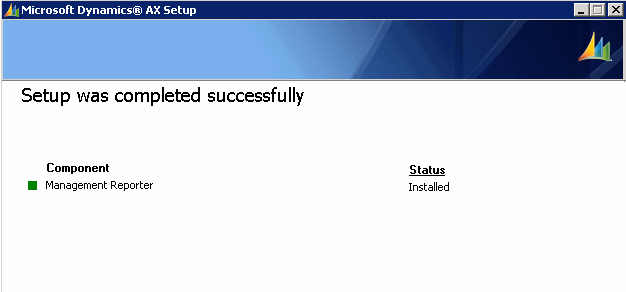
Done!


Before we continue, let us check some things. You should have a new shortcut named "Configuration Console" on the Start menu. Open the Console, locate  "Data Mart Integration" and hit Refresh. Observe that things look promising. It might take a few minutes before data has been collected fully to the Data Mart Database. 


Oh, and if you wonder how that link from AX works, you should also have an entry in LedgerParameters.ManagementReportUrl for the company that has an active integration. Setup should have added that. If not, you will have to do some manual steps from this Configuration Console, but that is not the scope of this post.

2. Installing the Client Components


Run AXSetup and chose to install "Management Reporter Report Designer". This will install both the Designer and the Viewer. You can install these on the terminal server if that fits your requirements. 


Done!


3. Testing!

Let us do some testing now that we have things installed!

The Designer


First, let's test the Designer. Locate the shortcut "Report Designer" under the Start menu. 


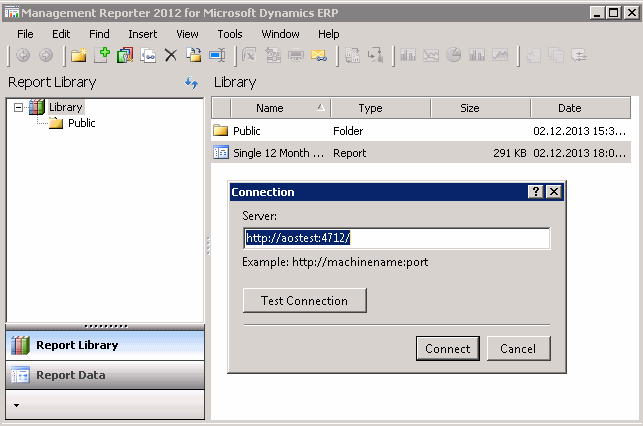
Enter the url to the server and port where the Management Reporter is running and connect. This is a one time per user per machine thing (as far as I know).


Select a company and hit the "Set As Default".


Select the first report and hit "Generate" on the toolbar.


Observe while the report is generated. Let it complete and wait for the report to be launched in a new window.


And the report should open. Yea, I hid some of the numbers from my demo.


The Viewer

Now for the Viewer. Locate the shortcut "Report Viewer" under the Start menu.


This tool might also need to have its connection properly set. The setting is under Tools, Connection.


Double click the generated report located in the Report Library and observe it loads an integrated view of the report.


And that is it. Now tell me, did it take you more than an hour to get this up? Next up is to inform the financial consultants that you're done and they can start hammering the tool for awesome reports. 

Final note

Have someone with access to the customer license (VOICE) download the license for the Management Reporter. It is its own license file, and you only have to copy+paste its content into the Registration form under Tools. If you don't do this step, you are limited to less than a handful of users, which is fine for testing, but not the real deal.

Also, don't bother to add users manually. These will be populated from AX dependent on what users have access to what. This is all documented in the Installation Guide for the AX provider.

Data are being held up to date by using SQL Server Change Tracking. If you however notice data not being refreshed and updated properly, you will find steps to resolve this in the already mentioned guide.

I hope this little guide helped you get going with Management Reporter 2012 for Dynamics AX 2012 R2 (CU7 and upwards). There are plenty of guides out for both installing, configuring and using this Reporting tool - I just felt like making one myself as well.


Sunday, December 1, 2013

Remember to upgrade the modelstore schema

I was preparing for an RTM to R2 upgrade the other day and while I was just making sure the RTM was prepared and ready for being upgraded I noticed an error I haven't seen before. As soon as I opened the About-dialog, the SQL Server would throw an error.
Here is an extract of the error:

"FASTFIRSTROW" is not a recognized table 
hints option. If it is intended as a parameter to a table-valued function or to the CHANGETABLE 
function, ensure that your database compatibility mode is set to 90.

A quick search on the net and I found out others had seen this error too. Since I was doing this upgrade on a fresh installed SQL Server 2012 I was now bit by a deprecated keyword "FASTFIRSTROW". This hint is now replaced by FAST n (TechNet).

Easy fix was simply just to update the modelstore schema. Apparently, whoever upgraded this RTM didn't read the CU3 instructions properly. One of the necessary steps in this upgrade was to reinitialize the schema. You can basically reinitialize the schema whenever and as often as you like. You will not lose your modelstore data - it is just a schema update. Not every CU contains schema changes, so read the upgrade instruction on partnersource when doing an upgrade.

My preferred way of updating the schema is this simple PowerShell command:

Initialize-AXModelStore -Server MySQLServerNameAndInstanceName -Database MyModelStoreDatabaseName

When I think about it, I would like the upgrade software do this initialization as part of the upgrade. From the top of my head I can't see any reason why not.


Saturday, November 9, 2013

You got to love AXBuild Compiler Tool

Initial testing of AXBuild 

I finally got around to play with the new compiler tool for Dynamics AX 2012 R2 and it really is a game changer. My first attempt of compiling a fresh install of AX2012 R2 with CU7 took a little less than one hour. This was tested on a virtual server with enough RAM and just two logical (virtual) 3.6Ghz processors. Not the result I expected, so I went back to the host system and changed Power Options from Balanced to High and added one more logical processor. The tool will take number of processors, multiply by 3 and divide by 2 to give a count of "workers". Max number of workers are 32, in case you try to run this on a system with more than 21 processors. Lol.

Second attempt now took half an hour, which is good, but not quick enough. Apparently I wasn't completely alone on the system, so after kicking out other variables (aka. colleagues) I was down to around 16 minutes for a full compile. Now this is having the databases hosted on another virtual server, so there are some speed lost in chit-chat, but I am thrilled.


Testing backward compatibility

The next thing I wanted to check was whether or not I could actually (ab)use this new compiler methodology to compile older R2 modelstores, like CU6. Surely a bit far-fetched, and perhaps not really supported, but why not give it a go.

I ran the command line utility and threw in a parameter pointing to a CU6 modelstore. The tool started compiling, but it compiled against the CU7 modelstore and not the one I pointed at. So the tool will take the AOS configuration and compile against the modelstore database defined on the AOS configuration. Not really what I aimed for.

I then tested compiling a CU6 modelstore with a CU7 AOS and I got the same result as described here.
I already had a CU6 AOS prepared for testing if I could start this AOS against a CU7 compiled modelstore, but it fails with the following error:

Object Server 01:  Fatal SQL condition during login. Error message: "The internal time zone version number stored in the database is higher than the version supported by the kernel (5/4). Use a newer Microsoft Dynamics AX kernel."


Upgrade kernels!

I mean, the kernel should be backwards compatible, so having CU7 kernel for client and service running against an older application version of R2 is supported, so the lesson learned is to upgrade kernel binaries to CU7 and enjoy a new and improved compiler tool!

If you run axupdate.exe you have the option to only upgrade the services and client components:


Well served by Microsoft on this one!

Monday, September 30, 2013

AX2012 R2 CU6 Code Upgrade Checklist Error

If you are planning to do an In-Place code upgrade (AX2012 to AX2012 R2) and you are on CU6 there is a high chance you will get this little problem.

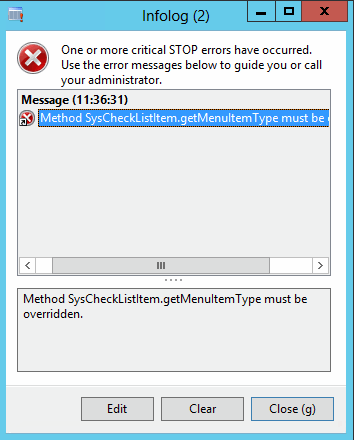
When you start the client and select the in-place code upgrade you get this error:
"Method SysCheckListItem.getMenuItemType must be overridden."


The solution is simply to just add one single method to one class.


In the SysChecklistItem_FixAxIDs add the method getMenuItemType and make it return the MenuItemType::Display enum value.


Compile the class and try run the checklist again. This is already documented on the download page for the update, but easy to miss. I'll admit I missed it the first time. If you searched for the error, hopefully you came here and you are now already back on track. :-)

Monday, September 9, 2013

Export list of model elements to Excel using PowerShell

So you want to get a list of all elements in a given model?
I tend to do it now and then, so here is how I do it.

Simply use the Get-AxModel to collect the details and pipe it to a Export-CSV.

(Get-AXModel -Model 'MyModel' -Details).Elements | select path, elementtype | `
Export-Csv -NoTypeInformation -Delimiter ';' c:\mymodel.csv

I've added the -NoTypeInformation to remove some unnecessary information, and I wanted to have the semicolon as delimiter in order for the file to open seamlessly in Excel 2013.


You can also list out other information as columns like the ElementHandle and ParentHandle.

Monday, August 19, 2013

Compare models using PowerShell

I wrote this post about how to use PowerShell to compare two modelstores based on installed models. It is a simple comparison and only checks if the two have the same list of models.

In this post I will show how you can compare the list of elements in two models. This will only compare the actual list of elements, and not their metadata or code.

The Get-AxModel PowerShell command allows us to load both the Summary and Details of a certain model. It will list out information like the Name, Path, ElementHandle and ParentHandle, just to name a few.
First let us have a look at the Summary and Elements property, then later I will show how we can use the Compare command to easily compare two lists and pull out any differences.

For this example, I have created a small model named "MyModel" and added an EDT, a table field and dropped that field into a Grid in a form. I also made a private project for this model.
If I list out the Summary of this small model it would display this:

(Get-AXModel -Model "MyModel" -Details).Summary

Output


If I want to see a list of all the elements, I can run the same command but instead of the Summary I load the list of Elements:

(Get-AXModel -Model "MyModel" -Details).Elements | select path, elementtype | Format-Table -AutoSize

Output


Notice I explicitly select the path and elementtype, and just to make the output a bit prettier, I throw in a formatting statement in the end, Format-Table -AutoSize.

Now, I exported my model to a file (C:\mymodel.axmodel) and then added some additional elements to the model inside of AX.

I then compared the elements from the file with the model elements in the actual modelstore:

compare `
 -ReferenceObject ((Get-AXModel -Model "MyModel" -Details).Elements | select path, elementtype) `
 -DifferenceObject ((Get-AXModel -File c:\mymodel.axmodel -Details).Elements | select path, elementtype) `
 -PassThru -Property path, elementtype | sort path | Format-Table -AutoSize

Output


Notice how it list the SideIndicator to the left hand side, or the ReferenceObject list. Apparantly the model has a couple of elements more compared to the file. Yes, you can list out the elements from a file as well, as mentioned in this blog post. Again, it will not compare X++ code or metadata. Maybe in future versions, Microsoft will add a checksum or something we can compare for possible differences between two elements.

Finally a quick tip for loading long list of elements. If the list of elements grows beyond the height of the buffer, you will only see the last part of the list. You can "fix" this by increasing the Screen Buffer Size under Properties.


Enjoy!