Saturday, October 12, 2013

AXUtilLib - AX Management Utilities version matter

With Dynamics AX 2012 you get this library of tools for all sorts of management tasks, like maintaining your models and modelstores, deploy SSRS reports or Enterprise Portal components and a lot of other cool stuff. While some may argue using command line tools is a set-back compared to rich UI tools, there is a vast number of DevOps (or OpsDev, if you prefer) who without a doubt find this to be a critical component for any major software solution. Before AX2012, I had just briefly tampered with PowerShell, but now I can't do my job (efficiently) without it. PowerShell is awesome!

This blog post is about the importance of the build version of AXUtilLib.dll. When you're running the Dynamics AX Management Shell PowerShell Window, you will by default launch it with whatever build version is installed, normally under C:\Program Files\Microsoft Dynamics AX\60\ManagementUtilities.
You can basically check your current version by running these two lines in PowerShell:

cd 'C:\Program Files\Microsoft Dynamics AX\60\ManagementUtilities'
ls -fi *.dll | % { $_.versioninfo }

Why is this important

Here is a couple of things you might struggle with.

ModelStore Database location

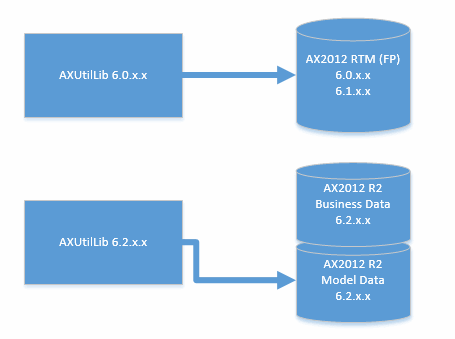
The RTM version will assume your application modelstore is located in the same database as your business data. This is expected behavior in RTM as the business data and the application data resided in the same database.
R2 version will obviously assume the application modelstore is located in a separate database using the "_model" suffix.

Unable to import models from newer version

When you export a model, it is bound to the version of the management utilities you used. Just try export a model to a file and then run this command to view the version:
Get-AXModelManifest -File C:\mymodel.axmodel | Select ModelBuildVersion
If you were to try import this model file using a previous version of Management Utilities you will get an error:
The model file is from a newer version of Microsoft Dynamics AX (version ) and cannot be installed.

How to get around

Say you have upgraded to the latest update of Management Utilities but have an AOS running a previous build and you need to use Management Utilities to import a model. Luckily, when installing the AOS, the installer drops a copy of the AxUtilLib.dll in the AOS bin-folder, and this copy will always (*knock-knock*) be of the same version of that AOS-service. All you need to do is to make sure your command line session uses this version and not the default one.

If your only concern is to install a model, then all you need is AxUtilLib.dll, AxUtil.exe (for Command Line Window) and AxUtilLib.PowerShell.dll (for PowerShell commands). For your own convenience, copy the files to a different path, say C:\AxUtilLib\6.2.1000.1437\.

For a Windows Command line session, simply open MS-DOS Prompt (with Administrator rights, I might add), navigate to the folder and run the necessary commands.

For a PowerShell session, you will have to import the assemblies necessary. Since this example is only about operations against models, we only need a limited set of assemblies.

There is a nice list of commands and assemblies in this nice post by Martin DrĂ¡b.

Friday, October 4, 2013

Baseline is the new old

I remember the very first time I saw the reference to a "Baseline database" in AX2012. It wasn't perfectly clear what the purpose of this database was. I remember thinking it might be some kind of Foundation database or perhaps even the database holding the application code. However, the database was optional, so evidently it had to be something else.

Eventually I learned the purpose of the baseline. It was simply the replacement of "old". If you're not sure what "old" is, it is just that folder holding the previous version of the application layer files in pre-AX2012 installations. This special folder makes it possible for developers to compare elements not only against other application layers, but also a previous version of the same application layer. This can be very helpful when upgrading Dynamics AX from a previous version.

This is how compare looks without Baseline (also known as "old"):

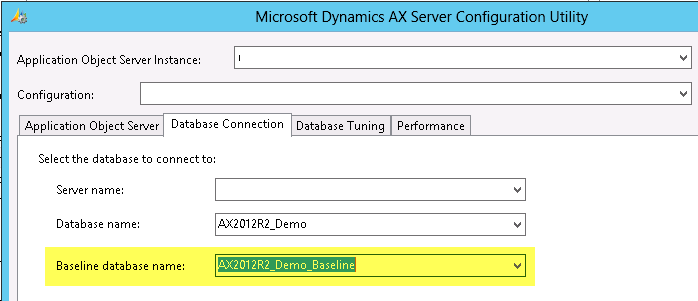
If you don't have a Baseline database, you can easily create it from scratch. It is just a database having the necessary database objects to hold a modelstore. If you have a Baseline database all you need to do is to make sure your Server Configuration points the Baseline Database option to the correct database.


After the AOS is restarted, it will include elements in this database when you do an element compare.


So how would you fill this Baseline with the application layers? Well, you can install AXModels to a Baseline database, but you will probably want to copy the entire modelstore instead.


AX2012 R2 has the neat setup where the ModelStore is in a separate database making copying to "old" easy with regular SQL Server Backup and Restore. If you are using AX2012 RTM or you prefer to use AXUtil or PowerShell, you can export the modelstore from your AX2012 Modelstore database and then import it using the same tools to the Baseline database. If your Server Configuration is set to a Baseline database, you will obviously have to shut down the AOS the minute you plan to apply the modelstore to the Baseline database.

So that is it - baseline is just the new "old". It is probably not "new" to those who have been tampering with AX2012 for a while now, but sometimes old news is also news. :-)

Monday, September 30, 2013

AX2012 R2 CU6 Code Upgrade Checklist Error

If you are planning to do an In-Place code upgrade (AX2012 to AX2012 R2) and you are on CU6 there is a high chance you will get this little problem.

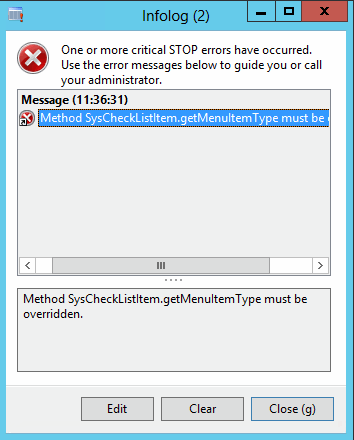
When you start the client and select the in-place code upgrade you get this error:
"Method SysCheckListItem.getMenuItemType must be overridden."


The solution is simply to just add one single method to one class.


In the SysChecklistItem_FixAxIDs add the method getMenuItemType and make it return the MenuItemType::Display enum value.


Compile the class and try run the checklist again. This is already documented on the download page for the update, but easy to miss. I'll admit I missed it the first time. If you searched for the error, hopefully you came here and you are now already back on track. :-)

Monday, September 9, 2013

Export list of model elements to Excel using PowerShell

So you want to get a list of all elements in a given model?
I tend to do it now and then, so here is how I do it.

Simply use the Get-AxModel to collect the details and pipe it to a Export-CSV.

(Get-AXModel -Model 'MyModel' -Details).Elements | select path, elementtype | `
Export-Csv -NoTypeInformation -Delimiter ';' c:\mymodel.csv

I've added the -NoTypeInformation to remove some unnecessary information, and I wanted to have the semicolon as delimiter in order for the file to open seamlessly in Excel 2013.


You can also list out other information as columns like the ElementHandle and ParentHandle.

Saturday, August 24, 2013

No colors when comparing code in AX

This is just a quick post on one of the annoyances when comparing elements in AX after the installing the latest version of Internet Explorer 10. Our beloved compare form suddenly doesn't show the red and blue color any more.


Apparently the latest version of the browser, IE10, doesn't support the gradient filter (CSS in HTML) once used for displaying the left hand side color boxes.

While it's not that big of an issue, I still felt compelled to sort it out. First I tried using some standard gradient CSS picked up from ColorZilla, but ended up using just static colors. I got the gradient to show OK in the browser, but not in the Ax form. Anyway, I just wanted the colors and not the fancy effects.


The solution is easy. Just change the HTML code put in the ActiveX components. Comment out the fancy gradient stuff and put on your own red and blue. Here is how I did it:


If anyone feels like sharing a different solution, please comment. For all I know, this will be sorted when Internet Explorer 11 is released. :-)

Update 9th of September

This problem is now solved in CU6 (6.2.1000.1437). They made the HTML complete with a CSS style section. I guess someone didn't want to throw out the gradient effect. ;-)


Monday, August 19, 2013

Compare models using PowerShell

I wrote this post about how to use PowerShell to compare two modelstores based on installed models. It is a simple comparison and only checks if the two have the same list of models.

In this post I will show how you can compare the list of elements in two models. This will only compare the actual list of elements, and not their metadata or code.

The Get-AxModel PowerShell command allows us to load both the Summary and Details of a certain model. It will list out information like the Name, Path, ElementHandle and ParentHandle, just to name a few.
First let us have a look at the Summary and Elements property, then later I will show how we can use the Compare command to easily compare two lists and pull out any differences.

For this example, I have created a small model named "MyModel" and added an EDT, a table field and dropped that field into a Grid in a form. I also made a private project for this model.
If I list out the Summary of this small model it would display this:

(Get-AXModel -Model "MyModel" -Details).Summary

Output


If I want to see a list of all the elements, I can run the same command but instead of the Summary I load the list of Elements:

(Get-AXModel -Model "MyModel" -Details).Elements | select path, elementtype | Format-Table -AutoSize

Output


Notice I explicitly select the path and elementtype, and just to make the output a bit prettier, I throw in a formatting statement in the end, Format-Table -AutoSize.

Now, I exported my model to a file (C:\mymodel.axmodel) and then added some additional elements to the model inside of AX.

I then compared the elements from the file with the model elements in the actual modelstore:

compare `
 -ReferenceObject ((Get-AXModel -Model "MyModel" -Details).Elements | select path, elementtype) `
 -DifferenceObject ((Get-AXModel -File c:\mymodel.axmodel -Details).Elements | select path, elementtype) `
 -PassThru -Property path, elementtype | sort path | Format-Table -AutoSize

Output


Notice how it list the SideIndicator to the left hand side, or the ReferenceObject list. Apparantly the model has a couple of elements more compared to the file. Yes, you can list out the elements from a file as well, as mentioned in this blog post. Again, it will not compare X++ code or metadata. Maybe in future versions, Microsoft will add a checksum or something we can compare for possible differences between two elements.

Finally a quick tip for loading long list of elements. If the list of elements grows beyond the height of the buffer, you will only see the last part of the list. You can "fix" this by increasing the Screen Buffer Size under Properties.


Enjoy!

Saturday, August 17, 2013

Logging Infolog to Event Viewer

This is probably a bit far fetched in real life, but still a cool feature built in AX 2012, and I really wanted to make a new blog post after a long summer vacation. Maybe someone will enjoy it still. :-)

This is already explained on the MSDN article "Propagate Infolog Messages to the Windows Event Log [AX 2012]", but I thought I'd throw in some screenshots just to make it even more appealing.

Obviously, this will only log client side as the Infolog push its messages to the client, and this tracing feature runs in the client scope.
There are some options to introduce server side logging using for example log4net. It is pretty good covered in this blog post, but it would require rewriting X++ code in order to trigger logging.

Developers will have the ability to use the static Debug::printDebug()-method to push any string to the debugger output window. These messages will open up the debugger, unless it isn't already running, and unless the output window is hidden, it should reveal the strings on the Debug-tab. Remember, in AX2012 only the users who are in the local (machine) usergroup named "Microsoft Dynamics AX Debugging Users" will see the debugger, as explained here.

Anyway, let us have a look at the easy and quick logging of Infolog messages.

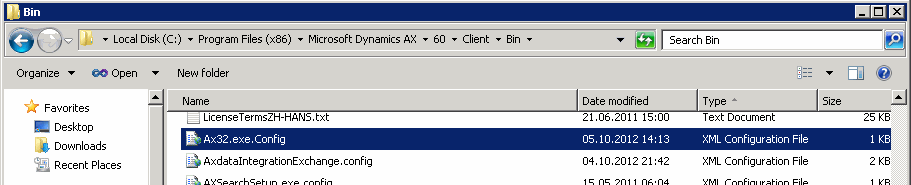
1) Start by locating the ax32.exe.config file, normally located under "C:\Program Files (x86)\Microsoft Dynamics AX\\Client\Bin\"


2) Open the file in notepad and add some additional XML sections in order to trigger the functionality. You can copy from the MSDN article or just type in what I have used.

3) In order to test this, let us create a simple job that triggers a Info, Warning and Error message.


4) Then let us open the Event Viewer and filter the log, just to focus on the events we just created.


4) Notice the Info-message was not included in my example, due to how I defined the switchValue only to include warnings and errors.


Now imagine having this set on a busy terminal server where everyone would be using the same logging setting. Depending on your requirements you could use this to preserve the most recent warnings and errors thrown to the client and browse through them when end users complain about all sorts of "mysterious" errors. Who haven't experienced end users complain about an error they can't remember the content of? Now you can go back and look in the Event Viewer and find it - hopefully.