Wednesday, April 16, 2014

Error when importing Model downloaded from Internet

If you were to download my compressed AX Model, YetAnotherDynamicsAXModel.zip, to your machine, Windows will most likely tag the downloaded file as unsafe and "blocked".

This is perfectly normal and expected behavior. However, this cause problems if you were to try install the model. After unzipping the content and attempting to install it you would get this error:

CategoryInfo : OperationStopped: (:) [Install-AXModel], PipelineStoppedException
FullyQualifiedErrorId : Exception has been thrown by the target of an invocation.,Microsoft.Dynamics.AX.Framework.Tools.ModelManagement.PowerShell.InstallAXModelCommand


If you were to attempt peek inside the model using Get-AxModel you would get this error:

CategoryInfo : OperationStopped: (:) [Get-AXModel], PipelineStoppedException
FullyQualifiedErrorId : An attempt was made to load an assembly from a network location which would have caused the assembly to be sandboxed in previous versions of the .NET Framework. This release of the .NET Framework does not enable CAS policy by default, so this load may be dangerous. If this load is not intended to sandbox the assembly, please enable the loadFromRemoteSources switch. See http://go.microsoft.com/fwlink/?LinkId=155569 for more information. ,Microsoft.Dynamics.AX.Framework.Tools.ModelManagement.PowerShell.GetAXModelCommand

While the first error isn't really intuitive, the next error gives us an additional clue; "assembly from a network location".

The solution is simple - unblock!

You have the choice to either unblock the downloaded zip.


Or you will have to unblock the AX Model file itself.


After the file is marked as safe and "unblocked", you are good to go!

Thursday, April 10, 2014

Warm up Reporting Services for quicker reporting

You might already know AX2012 R2 CU7 brought a new helper class for warming up Reporting Services so it doesn't "fall asleep" during long periods of inactivity. The new class has already been blogged about, but in this post I will show to set up the batch and also give you some hints on how to find potential reports you can target if you want to extend the class.

Setting up the batch

Now, I'm going to set this up for every 10 minutes, and not every minute as some might suggest.

The class is dependent on a SSRS report that needs to be deployed, so if you haven't done so already, find the report and deploy it.


After making sure the report is available, you need to locate the class in the AOT. Open the class to run it. Choose batch and define recurrence and alerts.


When the report runs, it will save the result as a PDF to the temporary folder on the AOS. You may open the report and view it, if you're really interested. The point is not the report as much as keeping the service "warm" and also provide a pattern for warming up other potentially slow running reports.


You may want to make sure you don't get a log entry for each successful batch run. I prefer to keep Errors Only for these types of frequent jobs.


Finding potential reports for extending the warmup

Reporting Services logs the execution of the reports and there are a lot of good statistics you can use to investigate potential performance issues. For this example I will run a SQL Query that gives me frequently run reports and load some metrics. I'm looking for reports run the last month with more than 25 runs and where there are more zero rows. These reports could be reports I would want to keep warm.

SELECT 
  COUNT(REPORTPATH) AS RUNS, 
  REPORTPATH, 
  MAX(TIMEDATARETRIEVAL) AS MAX_DATA ,
  MAX(TIMEPROCESSING) AS MAX_PROCESSING,
  MAX(TIMERENDERING) AS MAX_RENDER,
  MIN(TIMEDATARETRIEVAL) AS MIN_DATA ,
  MIN(TIMEPROCESSING) AS MIN_PROCESSING,
  MIN(TIMERENDERING) AS MIN_RENDER
FROM EXECUTIONLOG2 
  WHERE 
     STATUS IN ('RSSUCCESS') 
  AND REPORTPATH NOT IN ('UNKNOWN')
  AND TIMESTART > DATEADD(m,-1,GETDATE())
  AND BYTECOUNT > 0 AND [ROWCOUNT] > 0
GROUP BY REPORTPATH
HAVING COUNT(REPORTPATH) > 25
ORDER BY COUNT(REPORTPATH) DESC

Here are a snippet of the results. You can clearly tell even the warmup report has different metrics for MAX and MIN. These are milliseconds, but if you see reports spending several thousands of milliseconds processing or rendering just a few rows, you may want to investigate why.


Coming from pretty quick and performant MorphX reports to SSRS might be painful both for us AX consultants and AX end users, but then we also see some reports perform stunningly if they were run just minutes ago. You would think they should run just as slow each time. They don't, so maybe we should figure out why that is. Keeping Reporting Services warm is part of the solution.

Wednesday, April 9, 2014

List compile errors using PowerShell

I always make sure that any compilations are logged. You do this by opening Tools, Options, Development, Compiler and check the "AOT log"-checkbox.
Having this on, whenever you compile anything, the operation and the result is logged. So for example if you initiate a full AOT compile in the client (not using AXBuild) there will be a text file named AOTComp.log normally in this folder:

C:\Users\YOUR_USERNAME\Microsoft\Dynamics AX\Log\


Interestingly, you can actually use this file to see how far the compilation has come using some text editor like Notepad++ and turning on "Update silently" and "Scroll to the last line after update" under Tools, Settings, Misc, File Status Auto-Detection. You can also install the "Document Monitor" plugin if that is your swag.

The PowerShell command to list any entries in the log that refers to an ERROR would be the following (example):

content 'C:\Users\tommy\Microsoft\Dynamics Ax\Log\AOTComp.log' | where {$_ -match "ERROR:"}

Now, you can do all sorts of things with the result, like ad-hoc checking or pushing it to a file, even a HTML-file.

Sunday, March 23, 2014

List content of a model to HTML using PowerShell

Building on this post on listing elements in a model and this post on putting a list in a HTML file I wanted to quickly just show an easy and quick way to create list elements in a model to HTML. The PowerShell command is easy, and the results are swift and usable.

For this example I'm going to list the contents of a hotfix.

(axmodel -model 'Hotfix-KB2909140-Foundation' -details).elements | select name, elementtype, path | `
sort path | ConvertTo-Html -CssUri http://skaue.com/ps.css | Out-File c:\KB2909140.html

The HTML-file can be viewed using your favorite browser.


Nifty, ey? :-)

Friday, March 14, 2014

Skip The Modelstore has been modified dialog

Let me first off just say, use this with care. So there, I've said it.

You know the dialog that shows up when the modelstore has changed and is considered "dirty". "Dirty" means that something has changed and it is unsafe to keep it like that without compiling, synchronizing and generating CIL. Depending on why it is dirty in the first place, you may want to opt for running one of the built-in checklists or opt for "Skip".


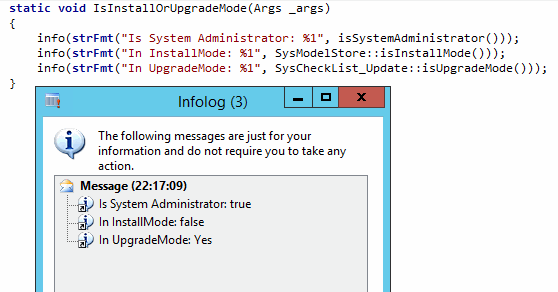
Now "Skip" is obviously not recommended, and that step doesn't do anything. In fact, if you choose "Skip" the same dialog will be loaded the next time you load the client. The dialog is loaded if your user is System Administrator and the modelstore is either in InstallMode or UpgradeMode. If you've installed or upgraded some models, you are per definition in one of those modes. You can test this by running this simple job:


So why would you want to really "Skip" this dialog? Let's say you've upgraded some models. You ran AxBuild and it went through. Now you fire up the AOS and start the Client. You "Skip" and continue with synchronize and generate CIL. You don't want to run the "Compile and Synchronize" because you've already compiled and you know it takes hours to compile using the client. Now, most importantly, you do all of this because you are confident the changes to the AOT are not necessary to analyze through the checklists. Still, this dialog us stuck there.


Easiest way to get rid of it now is to uncheck the MinorUpgrade checkbox on the ReleaseUpdateConfiguration table. Close the Client and start it again.

Dialog gone! ;-)

UPDATE:
You can also alternatively create a job that runs SysCheckList_Update::finalizeMinorUpgrade();

Monday, March 10, 2014

List models as a HTML Table using PowerShell

I was working on a PowerShell script to list my servers and their specs the other day and one of the cool things I learned was how easy it is to push the result out as a HTML table. Why would you want to do that? Well, it can be (just) another way of presenting the models in a modelstore. Also it is a matter of copy and paste to grab the table over to Excel if that is your swag.

So let's get on with the command:

axmodel | select modelid, name, layer, version, elementcount | `
sort modelid | ConvertTo-Html -CssUri http://skaue.com/ps.css | Out-File c:\models.html

I'm not specifying the modelstore here, just grabbing whatever my local config is pointing too. I'm also making use of the default verb, so I can write "axmodel" instead of "get-axmodel". Nifty, ey?

I'm a former web developer, so I uploaded a small stylesheet to prettify my table. Feel free to grab it and reuse it if you want to, or simply reuse the URL.

body{background-color:#efefef; font-family:tahoma;font-size:90%;}
table{border: 1px solid #999;}
th{border-bottom:1px solid #999; text-align:left;}
td{padding:2px;}
tr:nth-child(odd) { background-color:#eee;}
tr:nth-child(even) { background-color:#fff;}

And here is the result:


PowerShell + AX + Web development - fun, fun, fun!

Friday, March 7, 2014

Adding users in Management Reporter from AX2012 R2

I have been getting some requests from blog readers on how users are added in Management Reporter. If you are on AX2012 R2 with CU7 and onwards the users are collected directly from AX by the service itself. This means that if you attempt to create the users from Management Reporter, the MR client (Report Designer) will stop you.

Management Reporter comes with 2 users and a limited license. So the very first thing you need to do is load the license. You will find the license on VOICE where you find the license for Dynamics AX. Load the license and observe the number of users granted. Management Reporter has four types of users: Viewer, Designer, Generator and Administrator. The account installing will become administrator immidately, and as soon as the service starts it will start collecting users from AX.

What typically happens is that you'll get your own user in right away, and then the two users given by the demo license. You then load the license and then the service adds the remaining users.

If you still don't see any users, it is most likely due to one of these two:

  1. No users have the correct roles in AX
  2. An error
The overview of roles is in the Whitepaper "Management Reporter Integration Guide for Microsoft Dynamics AX (DynAXDataProvInstGuide_ENUS)". But since you're reading here, I'll list the current ones:

Designer: Accounting manager, Accounting Supervisor. (LedgerBalanceSheetDimMaintain)
Generator: Accountant, Accounting manager, Accounting supervisor, Chief executive officer, Chief financial officer, Compliance manager, Financial controller (LedgerFinancialJournalBGenerate / LedgerBalanceSheetDimPrintGenerate)
Administrator: Security Administrator (SysSecSecurityMaintain)
Viewer: No roles but there is a privilege. Create your own role or edit one of the existing ones if you need this MR role. (LedgerViewFinancialStatement)

As for error, the only problem I've experienced so far is having AX users who were removed from Active Directory. The service will simply stop collecting users as soon as it hits a user in AD which it cannot find in Active Directory. Personally, I would prefer if the service skipped inactive users. In one of my environment I had a handful of users who were deleted from AD, and these users prevented the service from collecting all the users.

I hope this helps. :-)